How to Redact Screenshots for Customer Support Tickets
March 10, 2026
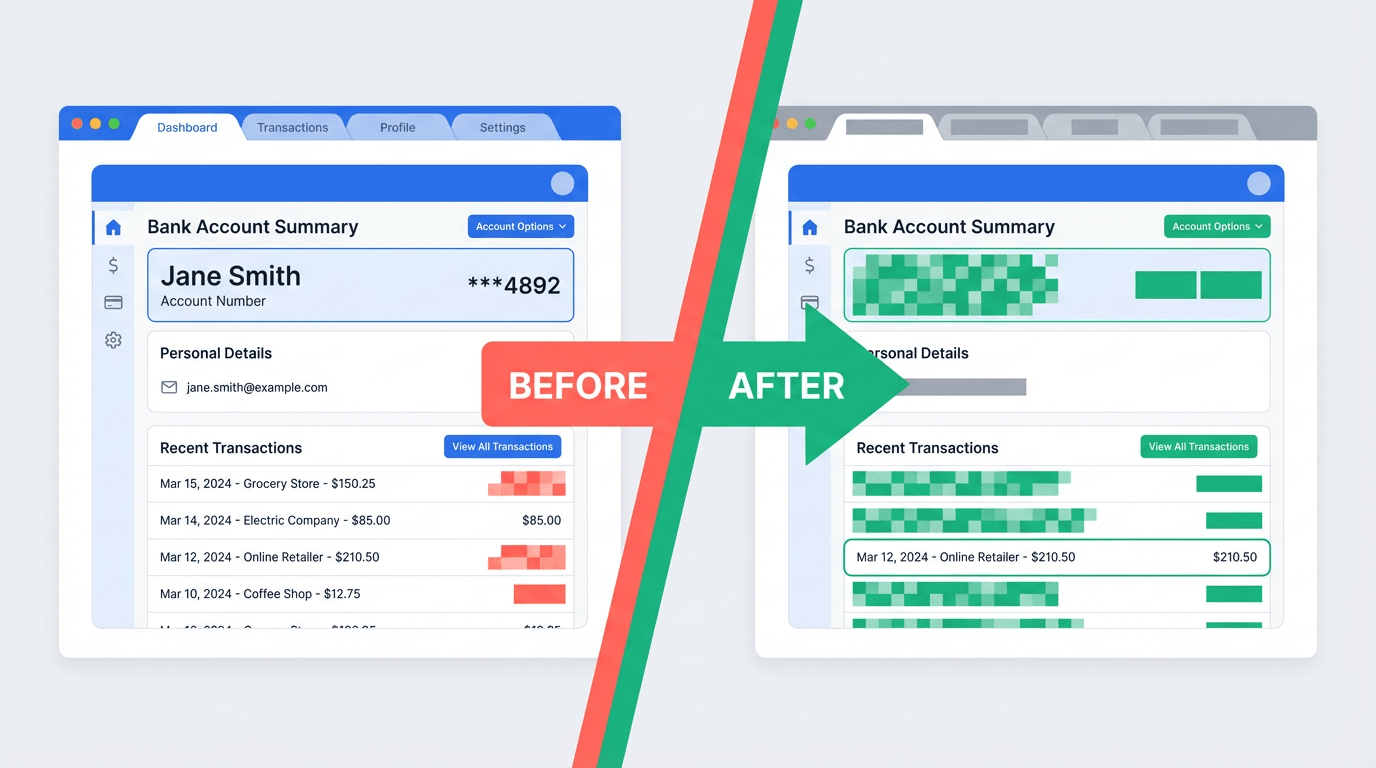
Every time you attach a screenshot to a customer support ticket, you risk exposing far more personal information than the agent needs to solve your problem. A screenshot of a bank account page, an error message, or a billing dispute can reveal your full name, account number, transaction history, email address, and even other browser tabs open in the background.
Support tickets are stored in CRM and ticketing systems that may be accessed by multiple employees, retained for years, or — in the worst case — exposed in a data breach. In 2024, a major ticketing platform confirmed unauthorized access to customer support records, including attachments. The lesson is clear: redact your screenshots before sharing them.
This guide covers what to look for, three common scenarios where screenshot redaction matters, and a step-by-step walkthrough for redacting screenshots quickly — both manually and with AI assistance.
Common Sensitive Information in Screenshots
Screenshots capture everything visible on your screen at that moment. Here are the most commonly overlooked types of personally identifiable information (PII) that end up in support tickets:
- Names and email addresses — Visible in account headers, notification bars, and "logged in as" labels
- Account and card numbers — Bank account screenshots often show full or partial account numbers, routing numbers, and card details
- Transaction details — Amounts, dates, merchant names, and running balances reveal financial patterns
- Passwords in form fields — Some sites show passwords in plain text when the "show password" toggle is on
- API keys and tokens — Developer console screenshots may contain authorization headers and secret keys
- Private conversations — Chat windows, email previews, or notification pop-ups visible in the background
- Browser tabs and bookmarks — Tab titles reveal which services you use, what you were browsing, and other account names
- URL bar contents — May contain session tokens, user IDs, or internal URLs
Bank account screenshots deserve extra caution. A single bank account screenshot can contain your name, account number, routing number, balance, and recent transactions — enough for identity theft. Always redact everything except the specific line item you need support with.
Use Case 1: Sending Screenshots to Customer Support
When you contact a company about a billing issue, failed transaction, or account error, the support agent typically needs to see one specific thing — the error message, the incorrect charge, or the broken UI element. They do not need to see your full account dashboard.
What Support Teams Can See
Support agents typically have access to your account information through their internal tools already. Your screenshot is used to confirm what you see on your end — they are comparing it against their own records. This means they rarely need the full account number, balance, or other personal details visible in your screenshot.
The Minimal Disclosure Principle
Share only the information necessary to resolve your issue. If you are disputing a charge, the agent needs the transaction date, amount, and merchant name — not your account balance or other transactions. Redact everything else.
- Keep the error message or specific transaction visible
- Redact your name, email, and account number
- Redact other transactions, balances, and sidebar content
- Crop or redact browser tabs, bookmarks, and the URL bar
Use Case 2: Sharing Error Screenshots with Developers
Developers often share screenshots of browser consoles, network requests, and error logs to debug issues. These screenshots frequently contain sensitive data that should not be posted in public repositories, Slack channels, or bug tracking tools.
- Console errors — Error messages may include user IDs, email addresses, or database record identifiers
- Network requests — The Headers tab in browser DevTools shows authorization tokens, API keys, and session cookies
- Database query results — Screenshots of admin panels or database tools may show customer records
- Environment variables — Terminal screenshots may show .env file contents or config values
Tip: Before screenshotting a console error in a public issue tracker, redact any authorization headers, bearer tokens, and user-specific data. The stack trace and error message are usually sufficient for debugging.
Use Case 3: Social Media Posts About Issues
Posting screenshots on social media to complain about a service or share a funny error message is common — and risky. Social media posts are public, searchable, and often permanently archived by services like the Wayback Machine.
- Screenshots go viral unexpectedly — A tweet about a billing error could be seen by thousands if it gains traction, and every viewer sees whatever personal information you left unredacted
- Web archives are permanent — Even if you delete the post, cached or archived versions may remain accessible indefinitely
- Other people's information — Group chats, email threads, or shared accounts may expose someone else's data, which you have no right to share
How to Identify Sensitive Information in Screenshots
Before sharing any screenshot, scan these commonly overlooked areas:
| Area | What to Look For |
|---|---|
| URL bar | Session tokens, user IDs, internal URLs, search queries |
| Browser tabs | Other logged-in services, tab titles with personal context |
| Bookmarks bar | Links to internal tools, personal accounts, saved logins |
| Notification badges | Email previews, chat messages, calendar event titles |
| Page header | "Welcome, [Name]", profile picture, email address |
| Sidebar | Account navigation, linked accounts, recent activity |
| Taskbar / Dock | Running applications, notification counts, system time and date |
Quick checklist before sharing: Scan the screenshot from top to bottom — URL bar, tabs, bookmarks, page content, sidebar, and taskbar. If anything looks personal, redact it. When in doubt, redact.
Step-by-Step: Redact Screenshots with PixBlur
PixBlur offers two ways to redact screenshots — a free manual editor that runs locally in your browser, and an AI-powered mode that automatically finds sensitive text and faces.
Manual Redaction (Free, No Login)
- Open the PixBlur editor — no account required
- Upload your screenshot (JPEG, PNG, or WebP, up to 30 MB)
- Select the Rectangle tool and draw over each area you want to hide — account numbers, names, tabs, URL bar
- For irregular shapes, use the Freehand tool to trace around sensitive content
- Choose your mask style: pixelate, Gaussian blur, or solid color
- Click export — the redacted image downloads at original resolution with EXIF metadata removed
Your screenshot never leaves your device in manual mode — all processing happens locally in your browser.
AI-Powered Redaction (1 Credit per Image)
- Open the PixBlur editor and upload your screenshot
- Sign in and click "Run AI Edit" — the AI uses OCR and semantic analysis to scan the image for sensitive text (names, emails, account numbers, phone numbers) and faces
- Review the AI-generated masks — you can adjust, resize, or remove any mask, and use manual tools to cover anything the AI missed
- Export the redacted image at original resolution with EXIF metadata stripped
New users get 5 free credits on signup. Each AI scan costs 1 credit.
Bulk Screenshot Redaction for Teams
If your team regularly shares screenshots in support tickets, bug reports, or documentation, PixBlur's batch processing lets you redact multiple images at once — up to 10 images per batch.
- Upload a folder of screenshots and let the AI process them in parallel
- Review each image individually before downloading — no image is exported without your review
- Download the batch as a ZIP file with all redacted images
This is useful for support teams preparing internal documentation, QA teams logging bug reports, or anyone who needs to redact screenshots regularly as part of their workflow.
Security Tips: What NOT to Share
Even after redacting your screenshot, follow these practices to minimize risk:
- Never share full bank account screenshots — Crop or redact everything except the specific transaction in question
- Close unnecessary tabs before taking a screenshot — this eliminates the need to redact them
- Use incognito/private mode when screenshotting for support — it hides your bookmarks, extensions, and logged-in accounts
- Crop tightly around the relevant area before uploading — less visible area means less to redact
- Avoid highlighting with transparent overlays — Semi-transparent markers can be removed digitally. Use solid redaction methods instead
- Consider screen recording alternatives — For complex issues, a short screen recording where you narrate the problem (without showing sensitive data) can be more effective than a screenshot
FAQ: Redacting Screenshots for Support
Can customer support agents see everything in my screenshot?
Yes. When you attach a screenshot to a support ticket, the agent — and potentially other employees with access to the ticketing system — can see everything visible in the image. This includes browser tabs, bookmarks, notification badges, URLs, and any personal information on screen. Support tickets are often stored indefinitely in CRM systems, so the screenshot may remain accessible long after your issue is resolved.
Should I redact my bank account number before sending a screenshot to support?
Yes. Bank account screenshots often contain your full account number, routing number, transaction history, and account balance — none of which a support agent typically needs. Redact everything except the specific transaction or error message relevant to your issue. If the agent needs your account number for verification, they will ask for the last 4 digits separately.
What is the safest way to redact a screenshot?
Use a dedicated redaction tool that permanently destroys the underlying pixel data. Pixelation and solid color overlays are the most secure methods — they replace the original pixels entirely. Avoid using semi-transparent highlights or text boxes placed over sensitive areas, as these can sometimes be removed or seen through. PixBlur processes images locally in your browser (manual mode) or applies permanent masks that cannot be reversed.
Can I redact screenshots for free without installing software?
Yes. PixBlur's manual editor runs entirely in your browser — no installation, no account, and no image upload required. Your screenshot never leaves your device. You can draw rectangles or freehand shapes over sensitive areas and apply blur, pixelation, or solid color masks. For AI-powered automatic redaction that finds sensitive text for you, sign in for free (new users get 5 free credits).
Does PixBlur automatically find sensitive information in screenshots?
PixBlur's AI redaction uses OCR to read all text in your screenshot, then applies semantic analysis to identify sensitive information — names, email addresses, phone numbers, account numbers, and other personally identifiable information. It also detects faces. The AI places masks over detected items, and you can review, adjust, or remove any mask before exporting. Each AI scan costs 1 credit (new users get 5 free credits).
Redact Your Screenshots Before Sharing
Whether you are filing a support ticket, posting on social media, or logging a bug report, take 30 seconds to redact sensitive information from your screenshots. It is a small step that prevents real privacy risks.
- ✅ Free Manual Editor — No signup, no upload, 100% local browser processing
- ✅ AI-Powered Redaction — Automatically finds names, emails, account numbers, phone numbers, and faces
- ✅ Review Before Export — Adjust or remove any AI-generated mask before downloading
- ✅ Batch Processing — Redact up to 10 screenshots per batch
- ✅ EXIF Metadata Removed — GPS, camera info, and timestamps automatically stripped
Manual editor requires no login. AI features give new users 5 free credits to try.