What Does Redact Image Mean? Understanding Image Anonymization
February 2, 2026
To redact an image means to permanently obscure or remove sensitive visual information — such as faces, license plates, personal names, or ID numbers — before the image is shared, published, or stored. With over 3.2 billion images shared online every day, the need to protect privacy in visual content has never been more urgent.
This guide explains exactly what image redaction means, how it differs from standard image editing, the technical differences between blur, pixelate, and mosaic methods, real-world use cases, and a step-by-step walkthrough of how to redact images effectively.
Image Redaction Definition
What It Means to Redact an Image
Image redaction is the process of irreversibly obscuring specific areas of an image that contain sensitive or personally identifiable information. The goal is to make the hidden content unreadable and unrecoverable while preserving the rest of the image for legitimate use.
Common targets for image redaction include:
- Faces — Protecting identity of individuals who haven't given consent
- Text — Names, addresses, phone numbers, email addresses, SSNs, credit card numbers
- License plates — Vehicle identification that can be traced to owners
- ID documents — Passports, driver's licenses, badges visible in images
- Screens and displays — Computer monitors or phone screens showing private data
How Image Redaction Differs from Image Editing
Image editing and image redaction serve fundamentally different purposes:
| Aspect | Image Editing | Image Redaction |
|---|---|---|
| Purpose | Aesthetic improvement | Privacy protection |
| Reversible? | Often yes (layers, history) | Must be permanent |
| Target | Overall look and composition | Specific sensitive content |
| Metadata | Usually preserved | Should be stripped |
| Legal relevance | None | GDPR, HIPAA, CCPA compliance |
The Permanence Requirement
The defining characteristic of proper redaction is irreversibility. If someone can undo or reverse the obscuring to recover the original information, it is not true redaction. This is why methods matter: a transparent layer or a removable annotation in a PDF editor is not redaction — it's decoration.
For images, permanence means the original pixels in the redacted area are destroyed and replaced in the exported file. The exported image should contain no trace of the original data — neither in the visible pixels nor in the file metadata.
Blur vs. Pixelate vs. Mosaic: What's the Difference?
These three terms are often used interchangeably, but they describe different techniques with different security properties:
Gaussian Blur
Gaussian blur applies a mathematical smoothing function that averages nearby pixel values, creating a soft, out-of-focus effect. It's the most natural-looking obscuring method and is widely used for faces in journalism and social media.
- Appearance: Smooth, professional, natural
- Security: Medium — AI tools have shown some ability to partially reverse blur on text
- Best for: Faces, backgrounds, non-text areas
Pixelation (Mosaic)
Pixelation divides the image area into larger blocks and replaces each block with a single averaged color. The term "mosaic" is used interchangeably with pixelation in most contexts. This method creates a distinctive blocky appearance that clearly signals "this content is hidden."
- Appearance: Blocky, clearly redacted
- Security: High — harder to reverse than blur because more data is destroyed per block
- Best for: License plates, text, ID numbers, general-purpose redaction
Solid Color Overlay
Solid color overlay completely replaces the target area with a single uniform color (typically black, white, or a custom color). This is the most secure method because it destroys 100% of the original pixel data.
- Appearance: Clean, complete coverage
- Security: Highest — zero original data remains
- Best for: SSNs, credit card numbers, financial data, anything highly sensitive
| Method | Security | Appearance | AI Reversible? | Best For |
|---|---|---|---|---|
| Gaussian Blur | Medium | Smooth, natural | Partially (text) | Faces, backgrounds |
| Pixelate / Mosaic | High | Blocky, clear | Difficult | Plates, text, general |
| Solid Color | Highest | Clean, uniform | Impossible | SSNs, financials, IDs |
| Emoji Overlay | High | Fun, casual | Impossible | Faces in casual contexts |
Which should you choose? For legal or compliance contexts, use solid color or pixelation. For social media and casual sharing, blur or emoji overlays offer a more natural look while still providing meaningful privacy protection for faces.
Common Use Cases for Image Redaction
Social Media Privacy
Group images at events, parties, or public gatherings often include people who haven't consented to being shared online. Redacting faces of bystanders, children, or non-consenting individuals is both an ethical practice and, in many jurisdictions under GDPR, a legal requirement.
Legal Document Processing
Courts and law firms frequently need to redact scanned documents, exhibits, and evidence photos. Names of minors, victim addresses, financial account details, and medical records must be obscured before filing or sharing.
Real Estate Listings
Property images often inadvertently capture faces of occupants, license plates in driveways, personal items on walls, and address details. Real estate agents increasingly redact these elements before publishing listings to comply with privacy regulations and protect sellers.
Journalism and Media
News organizations redact faces of witnesses, minors, and undercover sources. License plates, address signs, and other identifying details in scene images are routinely blurred to protect the identities of individuals who are not the subject of the story.
Research and Academic Use
Academic researchers working with image data — from medical imaging to urban studies — must anonymize images before publication. IRB (Institutional Review Board) requirements often mandate that all identifying information be removed from visual data before it can be used in studies or published in papers.
AI-Powered Image Redaction: How It Works
Manual image redaction — opening an image editor and carefully drawing boxes over every sensitive area — is slow, tedious, and error-prone. AI-powered redaction automates this process:
Face Detection
Computer vision models scan the image and identify human faces by recognizing patterns of facial features (eyes, nose, mouth). Modern face detection achieves >98% accuracy and can identify multiple faces in a single image, including partial profiles and faces at various angles.
Text Recognition (OCR)
Optical Character Recognition reads all text visible in the image and records both the text content and its exact position (bounding box coordinates). This includes printed text, handwritten text, text on screens, signs, documents, and labels.
Semantic Sensitivity Analysis
This is what separates basic OCR from intelligent redaction. After text is extracted, an AI language model analyzes the content to determine which text is sensitive. It understands context: "John Smith" is a personal name that should be redacted, while "Exit" on a sign is not sensitive. This semantic layer prevents over-redaction (hiding everything) while catching truly private data.
Confidence and Review
No AI system is 100% perfect. That's why the best redaction workflows include a human review step: the AI proposes redaction masks, and the user can add, remove, or adjust them before exporting the final image. This human-in-the-loop approach combines AI speed with human judgment.
Step-by-Step: How to Redact Images with PixBlur
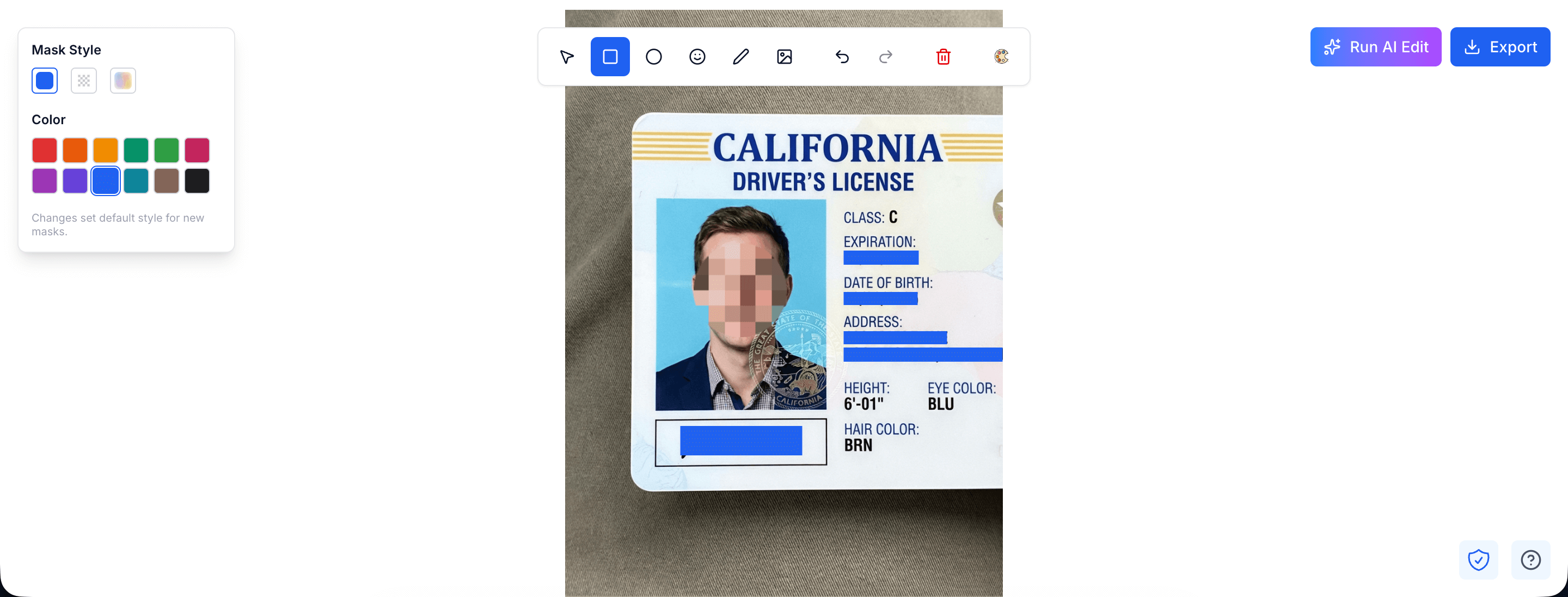
PixBlur offers two approaches depending on your needs:
Manual Mode: 100% Local, Free, No Login
The manual editor runs entirely in your browser. Your image never leaves your device — no upload, no server processing, no account needed.
- Go to the PixBlur editor
- Upload your image (JPEG, PNG, or WebP, up to 30 MB)
- Select a drawing tool: rectangle, circle, freehand, emoji, or image overlay
- Choose your mask style: pixelate, Gaussian blur, or solid color
- Draw over sensitive areas in the image
- Use undo/redo (Ctrl+Z / Ctrl+Shift+Z) if you make a mistake
- Click export — the image downloads in original resolution with EXIF metadata removed
AI Mode: Auto-Detect Faces and Sensitive Text
AI redaction automatically identifies and masks sensitive content. It requires a free account and uses 1 credit per image.
- Sign in (new users receive 5 free credits)
- Upload your image to the editor
- Click "Run AI Edit" — the AI scans for faces and sensitive text
- The AI automatically detects and masks:
- Faces (with your preferred style: emoji, pixelate, blur, or solid color)
- Personal names
- Phone numbers
- Email addresses
- Physical addresses
- ID numbers / SSNs
- Credit card numbers
- License plates
- Medical and financial information
- Review the AI results — add, remove, or adjust any mask using the manual tools
- Export the final image in original quality with EXIF stripped
This review-before-export flow ensures you always maintain control over what gets redacted. The AI does the heavy lifting; you make the final call.
FAQ: Common Questions About Image Redaction
Can redacted images be recovered?
It depends on the method. Solid color overlays permanently destroy the original pixels, making recovery impossible. However, blur and pixelation can sometimes be partially reversed using AI reconstruction tools, especially for text. For maximum security, use solid color redaction for highly sensitive content.
Is blurring enough for legal compliance?
Blurring can satisfy many privacy requirements (like GDPR anonymization) when applied at sufficient intensity. However, for highly sensitive data such as Social Security numbers or financial account numbers, solid color redaction is recommended because blur can theoretically be reversed. Always verify your redaction meets the specific compliance standard you need to satisfy.
What about image metadata?
Images often contain EXIF metadata including GPS coordinates, camera model, date/time, and device information. Even after redacting visible content, this metadata can reveal sensitive details. A complete redaction workflow should also strip EXIF data. PixBlur automatically removes all EXIF metadata from exported images.
What sensitive text can AI redaction detect?
PixBlur's AI uses OCR combined with semantic analysis to detect personal names, phone numbers, email addresses, physical addresses, ID numbers, Social Security numbers, credit card numbers, license plates, and medical or financial information. The AI understands context, so it identifies sensitive data rather than redacting all text indiscriminately.
What is the difference between image redaction and image editing?
Image editing modifies images for aesthetic purposes — cropping, color correction, filters, etc. Image redaction specifically targets sensitive information for permanent removal to protect privacy. The key distinction is intent and permanence: redaction is about irreversibly hiding sensitive data, not making the image look better.
Why PixBlur for Image Redaction?
- ✅ AI-Powered Detection — Automatically finds faces, names, phone numbers, addresses, license plates, and other PII with >98% accuracy
- ✅ Review Before Export — AI results are editable; add or remove masks before downloading
- ✅ Batch Processing — Redact up to 10 images per batch with a single click
- ✅ Privacy-First Manual Mode — 100% local processing, no uploads, completely free
- ✅ Free PDF Converter — Convert PDF to images and back, 100% in browser
- ✅ EXIF Metadata Removed — GPS, camera info automatically stripped
Manual editor requires no login. AI features give new users 5 free credits to try.